 | ||||||||||||||||
mIRC Guide (08/07/2006 14:44) | ||||||||||||||||
Welcome to our mIRC Guide This guide will get you started on mIRC a widely used program used to chat on IRC This is the chat system we have in the game and you might not be aware of it if your not aware of it you can open it on our frontpage go to the communication in the linkbar and select chat! Now, if you like what you see, i think you will like mIRC and i invite you to continue Why use mIRC to chatFirst off i would like to tell you a bit about mIRC. mIRC is a client to chat to other people online. There are a lot of IRC networks out there and those usualy hold a lot of channels. In those channels you can chat with everyone in there and also have private conversations aswell. Now i can hear you think, why would i use yet a other chat program........ let me tell you
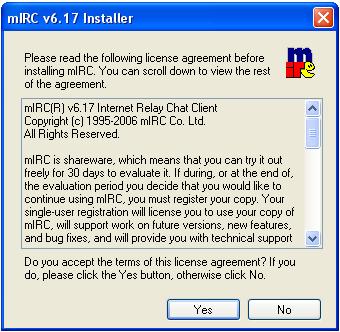
Installing mIRCFirst off you need to download the mIRC Client you can do that here when downloaded run the file to install it and get the following steps
Back Next Setting up mIRCstarting up mirc requires you to set up the network you want and your personal details Also you need a online nickname, you could ofc use your manager name but you dont have to Nicks can be used by everyone and if you want to make sure no-one else can use your nickname you can register it on the netgamers website
Back Next Startup and the basic commandsnow that you have setup Mirc you can connect mIRC to the network this is very simply done by pressing the lightning button in the upper left courner  If you want to make changes to the options we just setup press the folder/hammer button and the options window will re-appear i will now give you a list of the most used commands - /join #<channelname> this will make you join a new channel, its not gonna close the old one, you will just get 2 windows - /msg <nickname> text this will send the text part to the person you entered the nick off in the command you can also double click on the name in the nicklist in channel, then you enter a private chat - /me text this will give you a line that looks like a 3rd party command in my case "/me trows a ball" would come out as "Xontas trows a ball" if you want to see all commands, click here any questions feel free to ask me Xontas@managerleague.com thanks for reading
| ||||||||||||||||
| Share on Facebook | ||||||||||||||||
| Blogger has no team. |
|
You are currently not logged into ManagerLeague If you wish to log in, click here. If you wish to sign up and join us, click here. |
|



| Gizmo wrote: 18:53 08/07 2006 |
|

| Zz00405053 wrote: 21:11 04/07 2010 |
|

| Zz00412859 wrote: 19:46 02/08 2010 |
|

| Zz00449741 wrote: 11:18 07/09 2010 |
|

| Ilies wrote: 17:29 16/03 2011 |
|

| Post a comment |
|
| © 2003-2007 Fifth Season AS, Oslo, Norway. Privacy Policy. Rules and Code of Conduct. Sitemap. Responsible Editor for ManagerLeague is Christian Lassem. |